
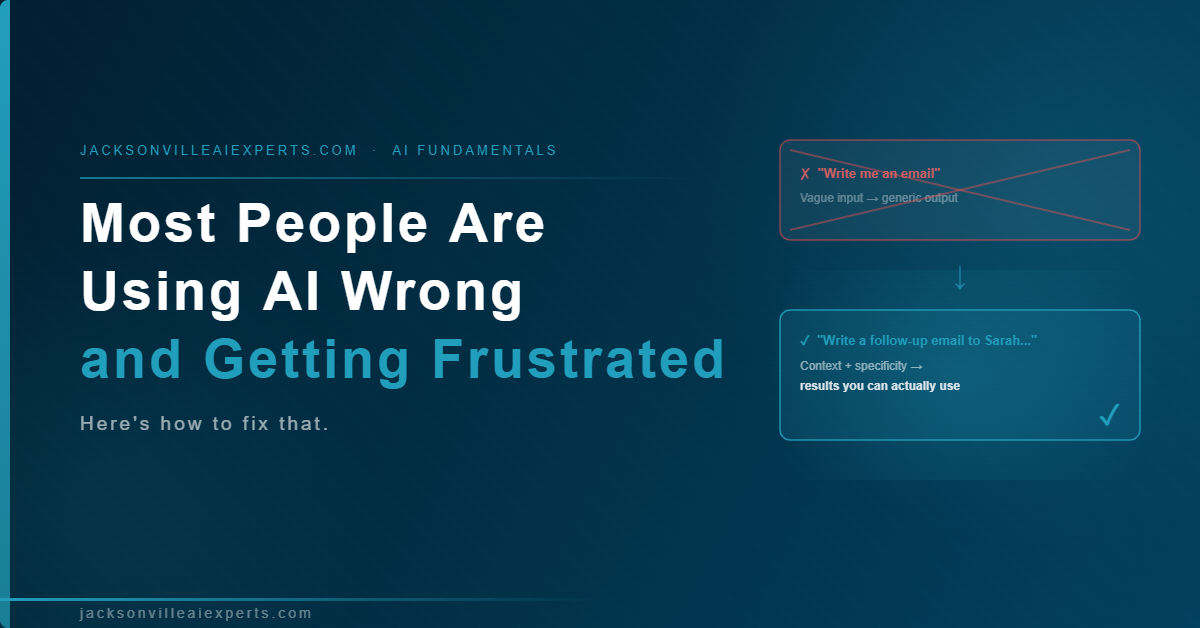
Most AI rollouts fail before they even start. The business owner signs up for a team plan, shares login credentials, and tells everyone to start using it. A week later, nobody is. The employees opened it, stared at a blank text box, typed something vague, got a generic response, and went back to doing things the way they always have.
That is not an adoption problem. That is a setup problem.
Handing your team access to an AI tool without giving that tool any context about your business is the equivalent of hiring a new employee and sending them straight to client calls on day one with no onboarding. The output is going to reflect exactly how much information they have, which is none.
The way to fix this is to build Projects inside Claude before anyone on your team opens the tool. A Project is a folder inside Claude that holds background documents, instructions, and example files. Every conversation inside that Project automatically reads from those files before responding. You are not prompting from scratch every time. The context is already there.
This guide walks through a seven-day process for building a working team AI system. By Friday of the first week, you should have at least two Projects your team is actually using, one internal champion spreading the workflow, and a refinement process you can run every week going forward.
Day 1: Build the Foundation

Start by listing the five tasks your business produces most often. These are usually things like client update emails, proposals or quotes, meeting summaries, weekly reports, and follow-up messages. Pick the two that consume the most time and cause the most inconsistency across your team.
For each one, create a dedicated Project inside Claude.
The single most important thing to get right here is what you load into each Project. Each one should contain only what it needs to complete that specific deliverable, nothing more. If you have a Project for client update emails, it does not need your pricing sheet. If you have one for meeting summaries, it does not need your brand guidelines. Loading irrelevant files does not help Claude. It adds noise and dilutes the instructions.
For each Project, upload three things:
First, one strong example of past work your team has already produced. This is the gold standard the AI will aim to match. Pick something that represents how you actually want the output to look, not the best thing you ever wrote, just a solid, representative piece of work.
Second, any background documents that are genuinely relevant to that deliverable. A client list for the email Project. A standard agenda format for the meeting summary Project.
Third, a text file with clear instructions. Write it like you are briefing a capable assistant on their first day. Tell the AI what its job is, who the audience is, what format the output should follow, and what to avoid. Be specific. “Write professionally” is not an instruction. “Keep responses under 200 words, use first names, and skip any sales language” is.
Two files worth building once and loading into every Project: an about-me file that describes how your team communicates and an about-my-company file that explains what your business does, who your clients are, and what you are trying to accomplish. These become the baseline context that any Project can reference.
Day 2: Write the Prompt Templates

A well-loaded Project still leaves your team with the same question: what do I actually type?
Answer that question for them before they have to ask it. Go into each Project and add a prompt template to the knowledge base. Write it out completely, with brackets showing exactly where the employee pastes their own information.
A template for meeting summaries might look like this: “Here are my raw notes from today’s meeting: [paste notes here]. Pull out the key decisions, action items, and owners. Follow the format in the example file and keep it under one page.”
That is the entire prompt. The employee does not need to understand how AI works. They paste their notes, hit enter, and the context layer you built yesterday handles everything else.
One structure worth adding to at least one of your templates is a question-first approach. Instead of asking Claude to execute immediately, have it read the files and ask a few clarifying questions before producing anything. The template looks like this: “I want to draft a client proposal based on these notes: [paste notes]. Read the Project files and ask me a few questions before you start.”
This works well for deliverables with a lot of variables. The AI interviews the employee with specific questions. The employee clicks through answers. The output is more accurate because the AI gathered what it needed rather than guessing.
Day 3: Test It on Your Own Work

Before you show anyone else the system, run it yourself on something real.
Find a task you completed this week that took more than 30 minutes. Run your raw materials through the new Project. Save both the original and the AI-assisted version.
This matters for one reason: you need actual evidence. When you eventually show this to your team, telling them it works will not be enough. A side-by-side comparison of a 45-minute task and a 4-minute version of the same thing is a different conversation entirely. You are not selling a concept. You are showing a result.
Use this session to fix anything that feels off in the output. Wrong tone, wrong length, missing information. Every correction you make becomes a new rule in the Project instructions, which means the next person who uses it gets a better result than you did.
Day 4: Find Your First Convert

Do not train your whole team at once.
Find one person who is visibly behind on work. The one who is always catching up on email, who stays late to finish reports, who has mentioned more than once that they have too much on their plate. That is your first convert.
Do not pick the tech-enthusiast who will figure out any tool on their own anyway. They are not going to spread it. Do not start with the biggest skeptic. That is too much resistance for day one.
Sit with your overwhelmed teammate for 15 minutes. Use something from their actual workload that week. Open the Project together, paste in their real notes, and watch what happens when the AI produces a solid draft in your company voice on the first try, without them having to write a single instruction.
That reaction is what you are after. Ask them what other tasks they do every week that feel like this one. Make them a co-owner of the Project. Ask for their input on what to add or change. Now they have ownership of the tool and something to show their teammates.
Day 5: Let It Spread Peer to Peer

A management mandate to adopt a new tool creates compliance. A colleague saying “this thing is actually useful, you should try it” creates adoption. Those are not the same thing.
Send a short message to your team channel explaining what the Project does and where to find the prompt templates. Keep it factual, one paragraph. Then have your Day 4 champion quietly reach out to two or three other people and tell them to try it.
That peer-to-peer moment changes the dynamic. The tool is no longer something the owner wants everyone to use. It is something a teammate is genuinely recommending because it helped them.
Collect feedback at the end of the day. Ask what worked, what felt confusing, and what other tasks might be worth building a Project around. The answers will drive the next round of improvements.
Day 6: Tighten the System with Negative Constraints

Real use will surface problems you could not have anticipated in setup. The proposal Project uses the wrong tone for a specific client segment. The meeting summary keeps burying the action items. The email template ends every message the same way.
Go back into the Project instructions and add rules about what to avoid. These negative constraints often matter more than the positive instructions. If the output uses corporate filler language, list the specific phrases you want banned. If paragraphs run too long, add a sentence limit. If the AI keeps including information that does not belong, tell it explicitly what to leave out.
One useful troubleshooting technique: if a Project produces a bad output, ask Claude directly why it made those choices. Ask it what instructions it was following when it drafted that version. It will reference its own instructions back to you, and you will immediately see what is vague, what is missing, and what is contradicting something else. That is the fastest way to diagnose and fix a broken workflow.
Day 7: Document It and Build the Next One

You now have a working system. Write down exactly how the Projects are set up and how new team members should use them. Document the prompt templates, the file structure, and any rules that came out of this week’s refinements. This does not need to be a manual. A simple one-page document per Project is enough.
Before you finish, teach your team two habits that will keep the system running efficiently.
First: start a new chat for every new topic. Claude re-reads the entire conversation every time you send a message. The longer a conversation gets, the more context it has to process on each exchange. If someone switches from drafting a proposal to asking an unrelated question in the same chat, they are burning through their usage on a conversation that is carrying unnecessary weight. New topic means new chat.
Second: avoid excessive back-and-forth corrections. When a response is not quite right, it is more efficient to restart with a more specific prompt than to send a series of follow-up messages trying to steer the output. Each correction requires Claude to re-read everything that came before it. A clean restart with better instructions produces better results faster.
The next step is to pick the deliverable that eats the most time in your business after the two you built this week. Set up a third Project, load it with the right context, and run the same process. The second one takes half the time of the first. The third one is faster than the second.
That is how the system scales without requiring you to retrain anyone or buy additional tools. You build one piece at a time, you refine based on real feedback, and the output gets more useful every week.
If you want the full step-by-step version of this process, including how to structure your Project files, what to write in your about-me and about-my-company documents, and a ready-to-use prompt template library, the complete guide is available inside the Jacksonville AI Experts community.

0 Comments